If anyone is wondering what is the location of SharePoint 2010 log files. Copy the line below and paste it in run:
%programfiles%\Common Files\Microsoft Shared\Web Server Extensions\14\LOGS
SharePoint 2007 had '12' folder and SharePoint 2010 has '14'... hmm where did '13' go??? Superstitious I presume since most building don't have 13th floors :D
Wednesday, May 12, 2010

Monday, May 3, 2010
PerformancePoint and Default Fitler Values
 Default behavior of PerformancePoint filters is to persist the values selected before, so that when dashboard reopens the filter values are set to those used previously. But what if we need to change that THEN the following article is what is needed:
http://blogs.msdn.com/performancepoint/archive/2008/02/12/always-display-default-filter-selection-in-dashboards.aspx
(Image taken for the above article)
Monday, April 26, 2010
XSL Conditional Format based on QueryString using SharePoint Designer
Today I had to add a success message on ContactUs page built on MOSS website using SharePoint Designer.
I had already built a ContactUs form, built by using DataFormWebPart A.K.A DataViewWebPart, where a user can enter some information and submit using only out of the box components using SharePoint Designer (which I will cover in this blog sometimes later).
Problem was, information was submitted successfully but no message was displayed to end user. So following is how I accomplished it.
 First add a parameter in 'Common Data View Tasks' as shown in the screen shot.
Press 'New Parameter' and select 'Parameter Source' as Query String, assign a name like in this case 's' and a default value.
This would declare a xsl parameter in our DataView web part like:
<xsl:param name="Success">0</xsl:param>
Next is to redirect the same page with a querystring value which would indicate success.For that 'Submit' button is changed to send querystring "?s=1" on submit.
To do that:
 Right click 'Submit' button, choose 'Form Actions...'. In 'Navigate to page' append the querystring.
Press Ok.
Finally in the XSL we use this value of query string Success as:
If page submitted using the Submit button
<xsl:if test="$Success = 1" >
<table>
<tr>
<td>Thank you for your request</td>
</tr>
</table>
</xsl:if>
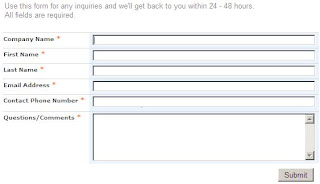
Else any other value we show the table containing the contact us form.
<xsl:if test="$Success != 1" >
<table border="0" width="80%">
<xsl:call-template name="dvt_1.body">
<xsl:with-param name="Rows" select="$Rows"/>
</xsl:call-template>
</table>
</xsl:if>
 Other possibilities can be to show an Alert which can be done by using the following code in side the conditional xsl:
<xsl:text disable-output-escaping="yes">
<!--[CDATA[
<script>
alert("Thank you")
</script>
]]--></xsl:text>
Good Day to all.
External Links:
Embed HTML in XML & Retrieve it with XSL
I had already built a ContactUs form, built by using DataFormWebPart A.K.A DataViewWebPart, where a user can enter some information and submit using only out of the box components using SharePoint Designer (which I will cover in this blog sometimes later).
Problem was, information was submitted successfully but no message was displayed to end user. So following is how I accomplished it.

Press 'New Parameter' and select 'Parameter Source' as Query String, assign a name like in this case 's' and a default value.
This would declare a xsl parameter in our DataView web part like:
<xsl:param name="Success">0</xsl:param>
Next is to redirect the same page with a querystring value which would indicate success.For that 'Submit' button is changed to send querystring "?s=1" on submit.
To do that:

Press Ok.
Finally in the XSL we use this value of query string Success as:
If page submitted using the Submit button
<xsl:if test="$Success = 1" >
<table>
<tr>
<td>Thank you for your request</td>
</tr>
</table>
</xsl:if>

Else any other value we show the table containing the contact us form.
<xsl:if test="$Success != 1" >
<table border="0" width="80%">
<xsl:call-template name="dvt_1.body">
<xsl:with-param name="Rows" select="$Rows"/>
</xsl:call-template>
</table>
</xsl:if>
 Other possibilities can be to show an Alert which can be done by using the following code in side the conditional xsl:
<xsl:text disable-output-escaping="yes">
<!--[CDATA[
<script>
alert("Thank you")
</script>
]]--></xsl:text>
Good Day to all.
External Links:
Embed HTML in XML & Retrieve it with XSL
Wednesday, March 31, 2010
KPI Threshold Values From Table
Today i had a requirement to make Thresholds configurable in PerformancePoint's KPIs. In PerformancePoint we can make Target value to be stored in a separate table and use it. But in my case I was mostly working with percentages where target values is always 100% but the performance indicators are variable. As some >80% is green sometimes >70% is green.
Client needed to store these thresholds values in an independent table perhaps accomplishing 2 things:
So following is the methodology to overcome this limitation:
Now we move to PerformancePoint server's Dashboard Designer.
For each KPI in the Actual row use the following CASE expression:
[Measure].[My Value] = Factual value upon which all measure are based.
[Measure].[Green - Fact Target Value] = Threshold value for Green indicator to be shown like 90 etc.
[Measure].[Yellow - Fact Target Value] = Threshold value for Green indicator to be shown like 80 etc.
([Measure].[Yellow - Fact Target Value], [Dim Source].&[System XYZ]) = Returns values for a particular system since I had multiple source systems.
In the Target value use [Measure].[My Value] in 'Data Mappings' and 'Source Data' in 'Calculations' to show values on dashboard.
For Thresholds use 'Increasing is Better' scoring pattern and 'Band by numeric value of Actual' banding method. Lastly for indicator values set 1 for Green, 0 for Yellow and -1 for Red.
That is all you need and no more adjusting Thresholds in Dashboard designer. Just modify values in the database table and you would be fine. Oh and yes you would be required to process your cube every time threshold values change.
Environment: SQL Server 2005, Performance Point Server 2007 SP2
Alternate Approach
Use SQL Server Analysis Services KPI do accomplish the same since it provides much simpler and easier way to use external goal values.
External Links:
Client needed to store these thresholds values in an independent table perhaps accomplishing 2 things:
- Access cube via excel and use these values
- Change in thresholds did not effect PPS KPIs.
So following is the methodology to overcome this limitation:
- First I created 2 simple tables in my data mart. One table for source systems. Other for target values for Green and Yellow along with reference to source systems table.
- In my cube I used these 2 tables in an unrelated measure group. Source systems table being used as a dimension. Target value table used a fact table with a measure group.
Now we move to PerformancePoint server's Dashboard Designer.
For each KPI in the Actual row use the following CASE expression:
WHERECASEwhen[Measures].[My Value] >= ([Measure].[Green - Fact Target Values], [Dim Source].&[System XYZ])Then 1when[Measures].[My Value] >= ([Measure].[Yellow - Fact Target Values], [Dim Source].&[System XYZ])then 0when[Measures].[My Value] < ([Measure].[Yellow - Fact Target Values], [Dim Source].&[System XYZ])then -1 END
[Measure].[My Value] = Factual value upon which all measure are based.
[Measure].[Green - Fact Target Value] = Threshold value for Green indicator to be shown like 90 etc.
[Measure].[Yellow - Fact Target Value] = Threshold value for Green indicator to be shown like 80 etc.
([Measure].[Yellow - Fact Target Value], [Dim Source].&[System XYZ]) = Returns values for a particular system since I had multiple source systems.
In the Target value use [Measure].[My Value] in 'Data Mappings' and 'Source Data' in 'Calculations' to show values on dashboard.
For Thresholds use 'Increasing is Better' scoring pattern and 'Band by numeric value of Actual' banding method. Lastly for indicator values set 1 for Green, 0 for Yellow and -1 for Red.
That is all you need and no more adjusting Thresholds in Dashboard designer. Just modify values in the database table and you would be fine. Oh and yes you would be required to process your cube every time threshold values change.
Environment: SQL Server 2005, Performance Point Server 2007 SP2
Alternate Approach
Use SQL Server Analysis Services KPI do accomplish the same since it provides much simpler and easier way to use external goal values.
External Links:
- http://blogs.msdn.com/performancepoint/archive/2008/01/09/band-by-stated-score.aspx
- MS Press Microsoft SQL Server 2005 Analysis Services Step By Step Chapter 8 page 213
Thursday, February 11, 2010
Password Protected Access DB and SSIS
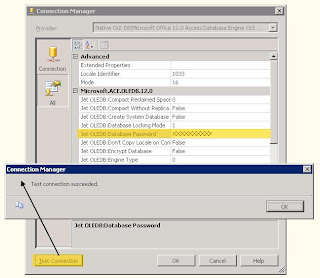
Today I shall show you how to import data using SSIS from MS Access 2007 which is password protected. Creating a connection using Access provider and now specifying password would give error:

To remove this error double click your new connection in the Connection Managers.
Move to the 'All' tab.
Enter the password against the propery "Jet OLEDB:Database Password".
And Test Connection. Success.

To remove this error double click your new connection in the Connection Managers.
Move to the 'All' tab.
Enter the password against the propery "Jet OLEDB:Database Password".
And Test Connection. Success.

Friday, December 4, 2009
Where Clause and SSAS Calculations
Today I had to change business rule in our SQL Server Analysis Services 2005 solution. It would be hard to explain the scenario so I use an example.
Scenario: A class contains boys and girls. We need to calculate the passing percentage of students that are boys.
Previously the rule was to get passing percentage of boys.
Total number of boys that pass / Total number of students in class
Correct rule should have been:
Total number of boys that pass / Total number of boys
Yeah, I know this can be done in a giffy in SQL Server but Analysis services is a totally different ball game.
Constraint was that we had no dimension for gender like boys, girls. Instead two columns in fact table (yup, not good implementation) boys and girls with value 0,1.
To work around our constraint we created Named Query in cube which returned all the dimensions along with every record where boys = 1.
Finally we had to filter measure based upon result dimension (P meaning Pass). So in Calculations tab of cube created a calculation as:
Round(([Measures].[Vw Get All Boys Count], [Result Dim].[Result].&[P]) / [Measures].[Vw Get All Boys Count] * 100,0)
And got the result we were expecting.
Scenario: A class contains boys and girls. We need to calculate the passing percentage of students that are boys.
Previously the rule was to get passing percentage of boys.
Total number of boys that pass / Total number of students in class
Correct rule should have been:
Total number of boys that pass / Total number of boys
Yeah, I know this can be done in a giffy in SQL Server but Analysis services is a totally different ball game.
Constraint was that we had no dimension for gender like boys, girls. Instead two columns in fact table (yup, not good implementation) boys and girls with value 0,1.
To work around our constraint we created Named Query in cube which returned all the dimensions along with every record where boys = 1.
Finally we had to filter measure based upon result dimension (P meaning Pass). So in Calculations tab of cube created a calculation as:
Round(([Measures].[Vw Get All Boys Count], [Result Dim].[Result].&[P]) / [Measures].[Vw Get All Boys Count] * 100,0)
And got the result we were expecting.
Thursday, December 3, 2009
Alerts on SharePoint List
Today I had to troubleshoot a SharePoint environment where alerts were not working.
Firstly this environment was not configured to send mail. So I started by installing IIS's SMTP client component. Configured the relay server.
Then configured the 'Outgoing E-Mail Settings' in Central Administrator.
Added an alert on a custom list.
And upon adding a new item nothing happens... hmm... googled around... eliminated the fail points since this environment was working with anonymous access. And then got it working by:
Disable alerts on the site
External Links:
1. Troubleshooting Alerts
2. Configure outgoing e-mail settings
Firstly this environment was not configured to send mail. So I started by installing IIS's SMTP client component. Configured the relay server.
Then configured the 'Outgoing E-Mail Settings' in Central Administrator.
Added an alert on a custom list.
And upon adding a new item nothing happens... hmm... googled around... eliminated the fail points since this environment was working with anonymous access. And then got it working by:
Disable alerts on the site
Enable alerts on the site
Added a new item in the custom list and it working like a charm. Also works when an anonymous user adds a list item.External Links:
1. Troubleshooting Alerts
2. Configure outgoing e-mail settings
Subscribe to:
Posts (Atom)